
Introduction
Pussy Home Boutique is an independent shop in the Lanes in Brighton & Hove.
I moved everything onto Shopify: the website, the products, the customer and order history, the stock and the shop’s till. This is how it went, what went wrong, and what I would do again.
The short version:
- One Shopify store now runs the website, the stock and the till.
- 3,600 products were reconciled from two catalogues, and more than 64,000 historical orders were carried across in a 17-hour run.
- A new custom theme was built with Freya’s feedback and tested on phones, tablets and desktops.
- The SEO, redirects and domain were moved without losing the shop’s search presence.
- The shop changed tills in an evening, reusing most of its existing equipment, and the owners have written guides for everything.
The brief and where I started
The brief was simple to say and hard to do: one system, no double-handling, and a website that looks like the shop.
The starting point looked like this:
- WooCommerce held the website, the customer accounts and more than 64,000 orders.
- Faire had pushed hundreds of wholesale products into a Shopify store. Some matched products already on the website, and some didn’t.
- The till in the shop was separate again. About 99% of sales happen in the shop, so the till matters far more than the website.
- No-one had a single list of what the shop actually sold.
Before touching anything, I audited the lot. Between them, the two catalogues came to around 3,600 products. Around 900 WooCommerce products had no Shopify equivalent. I also made a list of every WooCommerce plugin and what it did, because that is where data quietly goes missing during a migration: custom fields, automatic SKU generation, checkout fields and the payment gateway all needed a decision.
Pro tip: audit before you build. A plugin list and a product comparison take a day or two, and they decide what the project really is.
Designing with Freya for every device
The design was shaped by Freya’s feedback. I held calls and feedback rounds in mid-September, and her feedback was specific and practical.
What she asked for:
- A look that matched the shop, not a generic template, with the shop’s name in its own typeface.
- Reviews, Instagram, new arrivals, best sellers and greetings cards on the homepage.
- A Richard Scarry banner (“Enter the world of Busy Town”) and a cosy seasonal feel.
- Free shipping messaging.
- Filters that stay visible on desktop instead of hiding in dropdowns, and a product page that wasn’t fiddly.
How I built it:
- I started from Shopify’s Dawn theme, because it is fast and accessible, and customised it heavily rather than starting from a blank page.
- A shared “boxed card on a soft gradient” look runs through the cart, product and collection pages, so the whole shop feels like one thing.
- Mobile was designed first. I used separate text sizes and layouts for phone, tablet and desktop, then checked each page on real devices. Things that looked fine on a laptop, such as a photo overlapping the text on the About page, were fixed on phones.
- Product photos come in every shape, because they arrive from two sources. Rather than editing thousands of images, the theme uses fixed aspect-ratio containers so grids stay tidy.
- I worked to WCAG 2.2 AAA accessibility, which is stricter than the usual AA. That meant checking contrast ratios (sale and sold-out badges pass at over 7:1), hiding decorative graphics from screen readers, and giving images text alternatives.
Making the shop easier to navigate
With around 3,600 products, the main job of the website is helping people find things. The old site and the Faire-created products had grown without a clear structure, and several menu links and 404 page links pointed at collections that were empty. A mega menu only works if the categories behind it are right, so I fixed the structure first and the design second.
The new category groupings:
- Eight top-level headings that match how people shop: New In, Homeware, Greeting Cards, Accessories, Gifts & Lifestyle, Brands & Characters, About and Contact Us.
- Parent categories that fill themselves. Homeware (10 sub-categories, 385 products at the time), Accessories (10, 499 products) and Brands & Characters (15 brand and character collections) are built from their sub-collections. A product added to a sub-category appears in its parent too, with no hand-picking.
- Rule-based collections. New In is “in stock, newest first”. Under £20, £50 and £100 are “below that price and in stock”. Bestsellers is ranked by real sales across everything in stock, so a sold-out favourite never takes the top spot.
- Nested groups where they help, such as Greeting Cards, then Occasions, instead of one long list of cards.
- A Brands & Characters A–Z page, because a shop with this many brands needs a place to browse them alphabetically.
- Empty categories removed. For Her, For Him and Calendars & Diaries were taken out until there was enough to put in them.
The mega menu itself. On desktop, each heading opens a multi-column dropdown that shows a whole category at a glance. I used Shopify’s built-in mega menu and made it fit the shop:
- The logo is centred, with the menu on a row of its own that runs the full width of the page, so the first column lines up with “New In” on every dropdown. I checked all six dropdowns at five screen widths.
- The search bar is always visible next to the logo, with predictive results as you type, rather than hidden behind a magnifying-glass icon. The basket sits beside it.
- On phones and tablets the same menu becomes a drawer. Every submenu starts with a “Shop all…” link, uses clear chevrons and a back button, and ends with the shop’s phone number. I also fixed a bug where two levels of submenu overlapped each other.
- One menu feeds everything. The breadcrumbs, the category links on the 404 page and the collection navigation all read from the same menu, so a fix in one place carries across the site.
Smaller changes that add up:
- On mobile, collection pages have a clear Filter and sort button, styled to match the page buttons.
- Search results show five products per row on desktop, with filter and sort controls styled like the page controls.
- The 71 collections linked from the menu each got their own search description, so the new structure also shows up properly in Google.
Checking it worked. After the clean-up I tested all 84 links in the header, mobile menu and footer. Each one loaded, and nearly all had at least three products. A handful of thin categories, such as Lighting, Soaps and Sympathy, were left for the owners to decide whether to keep or fold into a broader group. A menu shouldn’t promise more than the shop can show.
Pro tip: sort out the categories before you design the menu. If a menu has to be fixed by hand, the grouping underneath is the real problem.
Building the theme safely
A live shop can’t be a sandbox. I set a few rules early:
- The original theme stays unpublished, so I can roll back in a minute if something goes wrong.
- Everything is under version control, so every change can be reviewed and reversed.
- Two living documents describe the project: a short map of how the store is set up, and a running log of every customisation and the files behind it. Anyone picking the project up later, including an AI assistant, can see what was done and why.
- Store content is treated as data, not code. Pages, policies and navigation live in Shopify itself, and changes to them are made carefully, because a single wrong edit to a menu replaces the whole menu.
- Nothing goes to the live store without a go-ahead from the client.
This sounds cautious, but it meant I could move quickly: more than four hundred small design changes went in over about six weeks, and none of them took the shop offline.
Migrating the products
Product migration looks like a spreadsheet job. It’s really a series of decisions.
What I did:
- Exported everything from WooCommerce and the existing Shopify store, then compared them SKU by SKU.
- Found the ~900 products that existed only in WooCommerce and prepared an import file for about 900 of them.
- Applied clear rules: products flagged “POS only” import as drafts; sale prices become the selling price with the original shown as the compare-at price; colour variants stay as separate products to match how the shop already worked; and stray characters in SKUs were cleaned out.
- Found and grouped duplicates where Faire and WooCommerce had both created the same product, with a suggested action for each.
- Listed every product with no image and where its image was likely to come from.
- Moved around 360 shop-only products to the Point of Sale channel only, so they can be sold in the shop but don’t appear online.
- Decoded dozens of product titles that had picked up HTML characters in the export.
A decision worth explaining: at the end, roughly 630 products that had no image or description were unpublished from the online store. They are still in the system for the till, but they don’t appear online until they are ready. The rest of the 3,600 remain online, and every one has a photo and a description. I would rather show a smaller, better catalogue than a larger, patchy one.
Migrating customers and orders
The shop had more than 64,000 orders in WooCommerce. Keeping them matters: it means customer history, refunds and repeat customers carry across, and the owners can still look things up.
I had a purpose-built migration tool written rather than using an off-the-shelf import, because the data was too messy for a generic one. Its design principles were:
- Audit first. The default mode only reads, and reports what would happen.
- Pilot, then everything. One order goes through first and is checked by hand. Then the rest follow.
- Resumable. If it stops, it picks up where it left off without creating duplicates.
- A full report. Every order is either migrated, or listed with the reason it wasn’t.
The full run took about 17 hours, which is why the tool had to be resumable and run in stages. The first pass migrated 64,190 orders up to the first cutoff. A small number (174) were left out: most were rejected because Shopify refuses payments of £0.00, which WooCommerce records for free orders and some refunds. I fixed the tool to handle those, and ran a second pass for orders placed after the cutoff.
Customers were converted separately, and the store’s gift vouchers and gift cards were audited so that no balance was lost.
Keeping sensitive data away from Claude
Moving a shop means handling real customer data: names, addresses and years of order history. I use Claude for much of my work, but I didn’t want it anywhere near that data.
So I used Codex Sol to create the scripts that migrate data between vendors, which meant Claude never touched the sensitive customer and order data.
Stock and the Faire connection
Stock is the part of a migration that can’t be rehearsed forever, because it changes every time something sells. My approach:
- Match first, change nothing. A script matched WooCommerce stock to Shopify variants and produced a review file that a human went through. Only matches approved by a person were loaded.
- Use Shopify’s stock API rather than spreadsheet imports, so changes are traceable.
- One stock location for the shop and the website. Faire’s sync only updates one location, so splitting the stock across two would have caused constant mismatches.
- Freeze, count, load. Stock can only be counted accurately while sales are stopped. That’s why the changeover was done after the shop closed.
Faire products had never been linked to their WooCommerce twins, so the matching was done by name and SKU, and the awkward remainder was reviewed by hand.
The SEO migration
A new website is a risk to search rankings. Years of Google’s trust in the old URLs can vanish if the new ones aren’t set up carefully.
What I covered:
- Page titles and meta descriptions for the collections and key pages (71 collections and 6 pages), with descriptions kept inside the length Google shows, and product titles tidied.
- Structured data for the FAQ and returns pages, so they can appear as rich results.
- A social-sharing image so links look right on social media and in messages.
- Redirects from the old WooCommerce addresses (such as
/shop/, product and category pages) to their new equivalents, so customers and Google don’t land on error pages. - A sitemap that Shopify generates automatically, submitted to Google Search Console as a domain property, verified through DNS.
- Cleaning up what shouldn’t be online: products without images, duplicates and the old copies of the site left on the previous hosting.
Pro tip: do the redirects before the domain switch, not after. Any day of 404s is a day of lost trust with Google.
Choosing the right till equipment
Choosing till hardware is mostly a compatibility problem. Shopify POS runs only on an iPad or phone, and each device (receipt printer, scanner, card machine) can connect in some ways and not others. The information is spread across manufacturer PDFs, Shopify help pages and Apple spec sheets, and a wrong guess means buying the wrong cable or the wrong box.
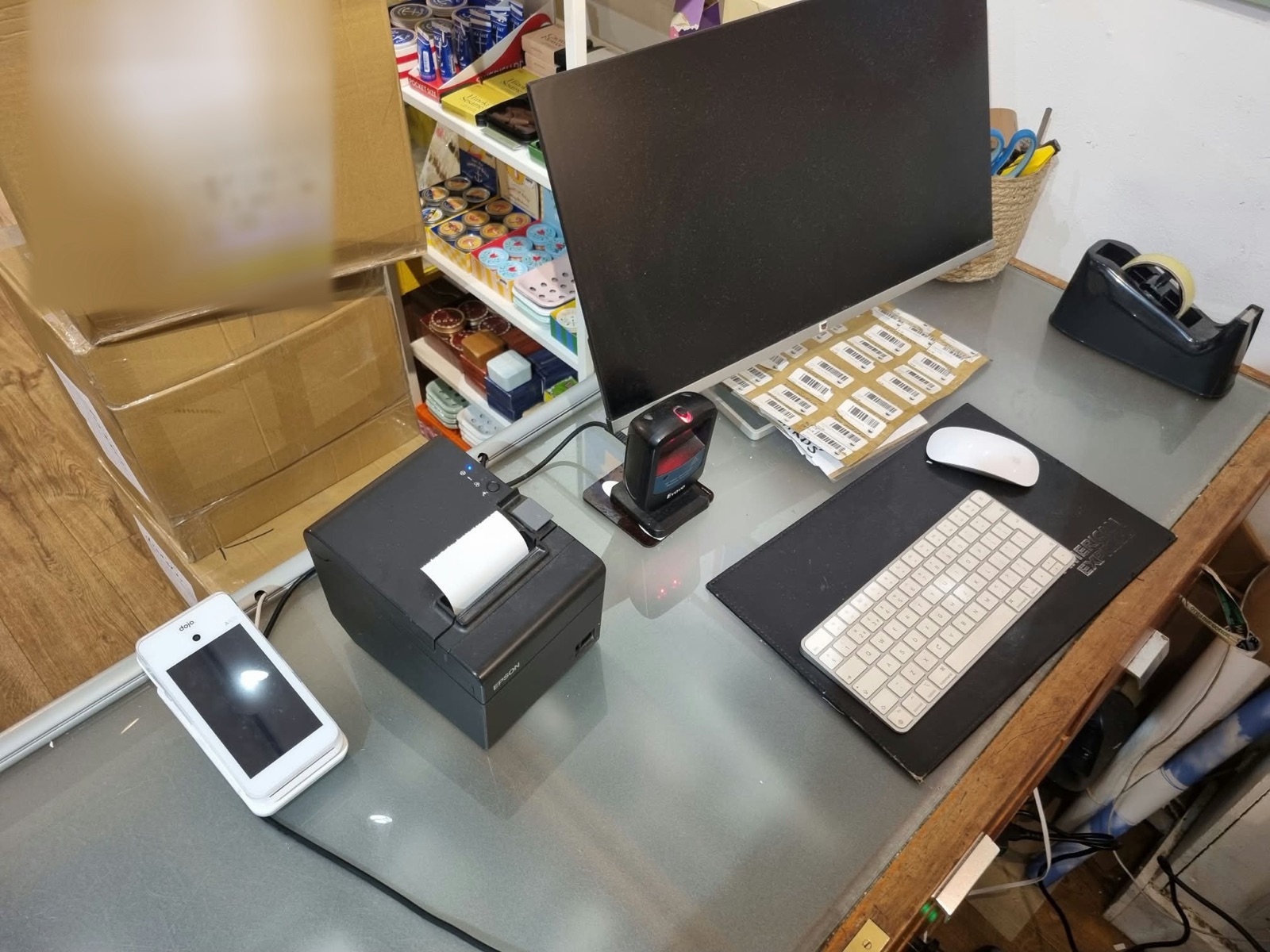
How Claude was used. I used Claude, Anthropic’s AI assistant, as a research assistant for this stage. It did three jobs:
- Identifying the equipment. I took photos of the equipment at the till, including the labels on the printers and the iPad’s About screen, and fed them to Claude. From those, it confirmed the exact models: an Epson TM-T20III (M267D), a DYMO LabelWriter 550, an iPad (A16) on iPadOS 26.4.1, and the Dojo card machine.
- Downloading the manuals. It found and saved the official guides for each device into one numbered folder per device (Epson, DYMO, Dojo, Apple, Zebra, Shopify), with an index saying what each file is and where it came from. It also recorded what it could not get. Shopify blocked repeated downloads of some help pages, and there was no UK operating guide for the Dojo, so those were listed as gaps instead of being quietly skipped.
- Checking compatibility. It compared each device against Shopify’s own supported-hardware pages and Apple’s specifications, and wrote the result up as a single hardware plan.
What that found. A few findings changed what I bought:
- The Epson printer can’t connect to an iPad over Bluetooth, Wi-Fi or a direct USB cable. Shopify supports it only over Ethernet or through a Shopify POS Hub, so the hub went on the shopping list.
- The iPad (A16) is named in Shopify’s hub compatibility list, and its iPadOS version meets both the hub’s requirement and Shopify’s 2027 minimum.
- The shop’s Mac mini cannot run Shopify POS at all, so it stays for Shopify Admin and label printing and is not part of the till.
- The Dojo card machine has no Shopify integration, so it stays separate, with a custom “Dojo card” payment type in Shopify POS for recording card sales.
- The hub’s single USB-C port is used by the iPad, so the printer needs a USB-A to USB-B cable. It was on the list before anyone found out the hard way.
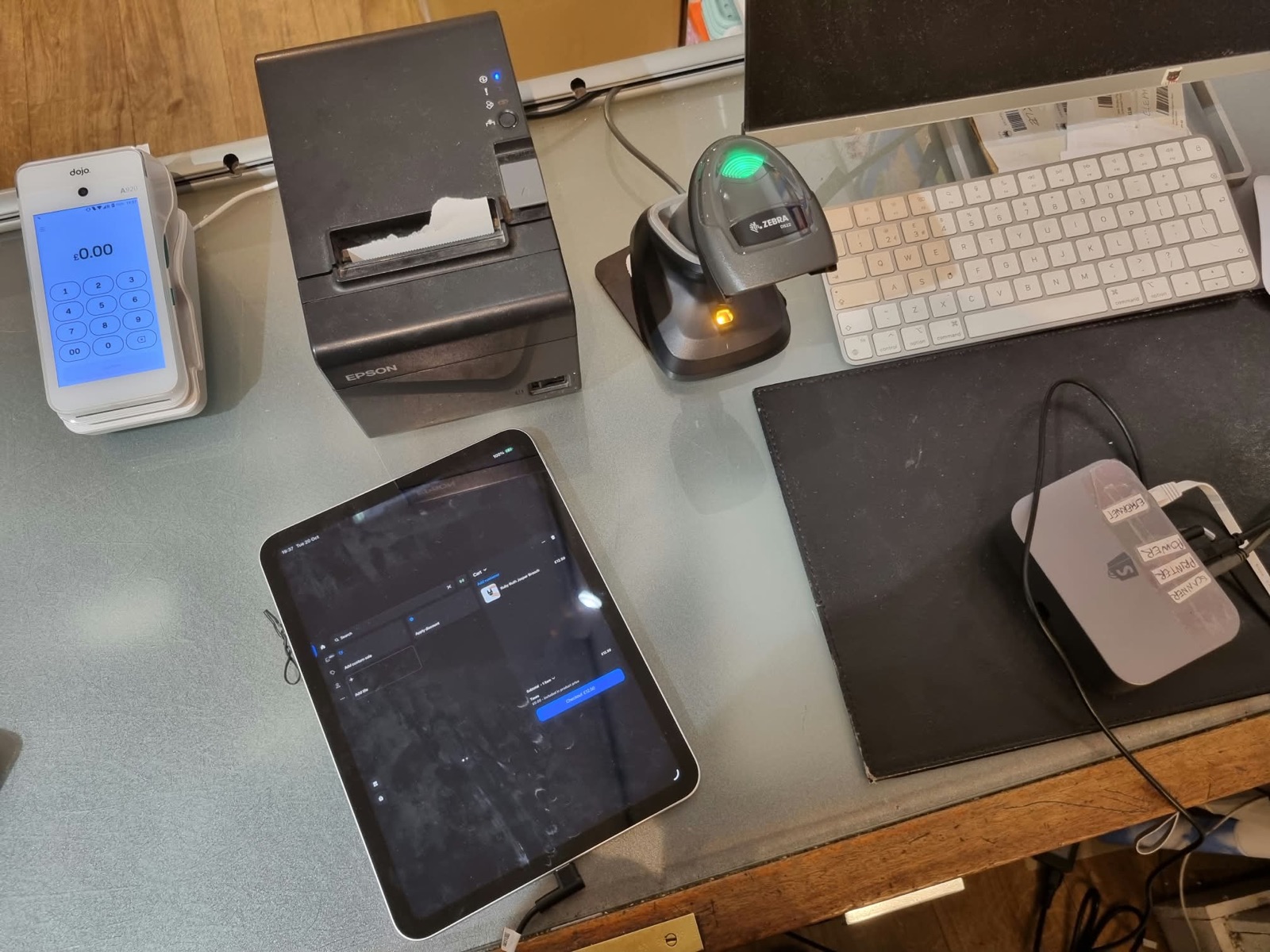
What it didn’t do. Claude doesn’t replace testing. The plan marked every assumption as something to check on the real devices, and it was right to: the Eyoyo scanner added a stray $ to every barcode, which no manual had warned about, and it was replaced with the Zebra scanner you can see above. Compatibility lists also don’t always name a specific model, so each claim was checked against Shopify’s pages and then tried at the till before changeover day.
Pro tip: whoever does the research, ask for a list of what could not be found or confirmed. That list is where the surprises are.
Planning the till changeover
This was the highest-stakes part, because the shop takes most of its money at the till.
The plan, in order:
- Set up and test the new point of sale first. It doesn’t affect the old system, so it can be done in advance.
- Freeze and count stock after the shop closes at 5pm, then load it into Shopify.
- Go live at the till as soon as stock is in, because that’s where 99% of sales happen.
- Switch the website domain last. The till doesn’t use the domain, so if anything went wrong with the website, it wouldn’t stop the shop selling.
I wrote one running order for the day, with every step marked as either safe or live, and a rule that anything touching the live shop needed the owners’ go-ahead first. It also listed what had to be finished beforehand, and what to do if a step failed.
The new hardware was kept to a minimum. Only three things were bought:
- A Zebra cordless barcode scanner with a charging cradle
- A Shopify POS Hub, which connects the printer and scanner to the iPad and keeps it charged
- Cables, including a USB-A to USB-B printer cable and an Ethernet cable
Reused from the old set-up:
- The iPad, now running Shopify POS
- The Epson receipt printer and the cash drawer
- The DYMO label printer for price labels
- The Dojo card machine, which stays separate from Shopify
| Before | After | |
|---|---|---|
| Website | WooCommerce | Shopify |
| Wholesale products | Faire products created their own items in Shopify | One catalogue, reconciled from both |
| Shop till | Separate till, with the printer and scanner on a Mac mini | iPad running Shopify POS on a POS hub |
| Stock | Counted separately in three places | One stock count |
| Barcode scanner | Eyoyo scanner adding a stray $ to every barcode | Zebra cordless scanner that reads barcodes cleanly |
| Card machine | Dojo, separate | Dojo, still separate from Shopify |
The scanner story. Early in testing, the original scanner added a stray $ before every barcode. The old system quietly ignored it, but Shopify POS matches barcodes exactly, so scans failed while the camera worked. Typing the $ into search proved the cause. The choice was to rewrite roughly 3,700 barcodes or fix the scanner, and I decided on the scanner. It was replaced with a different model and the problem disappeared. This is a good example of how a data problem can turn out to be a hardware one.
Documentation for the owners
A migration isn’t finished until the owners can run what’s been built without me. I produced:
- A POS and hardware guide written for the shop floor: what each device is, how to switch it on, how to ring up a sale, a refund or a gift card, and what to do when something doesn’t work.
- A hardware folder with manuals, help pages and photos for each device, and an index that says what’s where.
- The returns and delivery FAQ, published on the website and used as the source of the policy pages.
- The store map and customisation log, so a future developer knows how the theme works.
- Product guidance: how to add a product with a good title, description and image, so the catalogue stays consistent.
Switching the domain
The website domain was registered at one company and its DNS was hosted at another, so the change had to be made in the right place. The domain stayed registered at 123-reg, but the DNS zone lives on the previous web host, Zume.
Only two records needed changing to point the website at Shopify:
- The root record (
@) pointed to Shopify’s address. - The
wwwrecord became an alias for Shopify’s shop address.
The part people miss is email. The old email was set up so that its mail server name pointed back at the root domain. Switching the root to Shopify would have sent the shop’s email to Shopify, which doesn’t accept it. So the mail server record was given its own address on the old host, and the email routing was pointed at it, before the website switched.
After the switch:
- Shopify confirmed both versions of the domain as connected, secured with a certificate.
- The bare domain is the primary one, and
wwwand the Shopify address both redirect to it. - Because DNS is cached, some visitors saw the old site for a few hours. This is normal and worth warning the owners about.
Challenges and lessons
- Two catalogues are worse than one. The Faire and WooCommerce overlap created the most cleaning work. Decide early which system wins.
- Plugins hide data. Custom fields, SKU generators and checkout fields are where migrations lose things. List them first.
- Aggregate the risky things. Pilot runs, audit-only modes and review files caught problems before they became customer problems.
- Payments set the schedule. Online payments had to be approved before the website could take orders, so the website stayed in catalogue-only mode until they were ready.
- Don’t trust a clean-looking export. HTML characters, odd SKUs and missing images all arrived looking fine.
- Hardware is part of the data problem. The scanner fault looked like bad barcodes.
- Email breaks quietly when DNS changes. Check the mail records before changing the website’s.
- Write it down as you go. The documentation was far easier to produce because it was written alongside the work.
Results and next steps
- One system for the website, stock and till.
- A catalogue of 3,600 products, with every product shown online carrying a photo and description, plus the shop-only range available at the till.
- More than 64,000 historical orders, migrated in a 17-hour run, and the customer history preserved.
- A theme that works on phones, tablets and desktops and aims for the highest accessibility standard.
- Owner-ready documentation for the till, the hardware and the store.
What’s next: adding images and descriptions to the unpublished products so they can go online, tightening email authentication, and watching Search Console for any pages that still need a redirect.
See the result for yourself. Visit the new Pussy Home Boutique website at pussyhomeboutique.co.uk, browse the new menu and categories, and if you’re in Brighton, pop into the shop in the Lanes.
Thank you. Freya gave continuous feedback on the design throughout, from the product pages to the smallest details, and the theme is much better for it. Bethan, the store manager, stayed on outside shop hours and answered every question I had, which made the till changeover possible.
Thinking about moving your shop to Shopify? I’d be happy to talk through your set-up, your catalogue and your till. Get in touch or book a call.